Configuration guide
Set up Planning Center for background checks
Four pieces of configuration in Planning Center People, after which your team starts a background check the same way it moves anyone through a workflow.
Who does what
You configure Planning Center. PSBI handles the connection, the mapping, and the testing. Nothing on this page requires a developer.
Your Planning Center administrator
- Create the Compliance custom fields
- Create the Background Check workflow and its two steps
- Approve the PSBI authorization link
- Create the workflow event subscription
PSBI
- Register the connection for your organization
- Read your workflows, steps, and field IDs
- Map each role to the right screening package
- Test the connection and review a dry run with you
Before you begin
- A Planning Center administrator who can manage People workflows, custom fields, and integrations.
- The list of roles you screen differently, and any add-on requirements such as driving or working with minors.
- Confirmation that everyone you intend to screen has a first name, last name, and their own email address, and is not marked as a child.
- A small group to launch with, rather than your whole volunteer roster on day one.
Create the Compliance custom fields
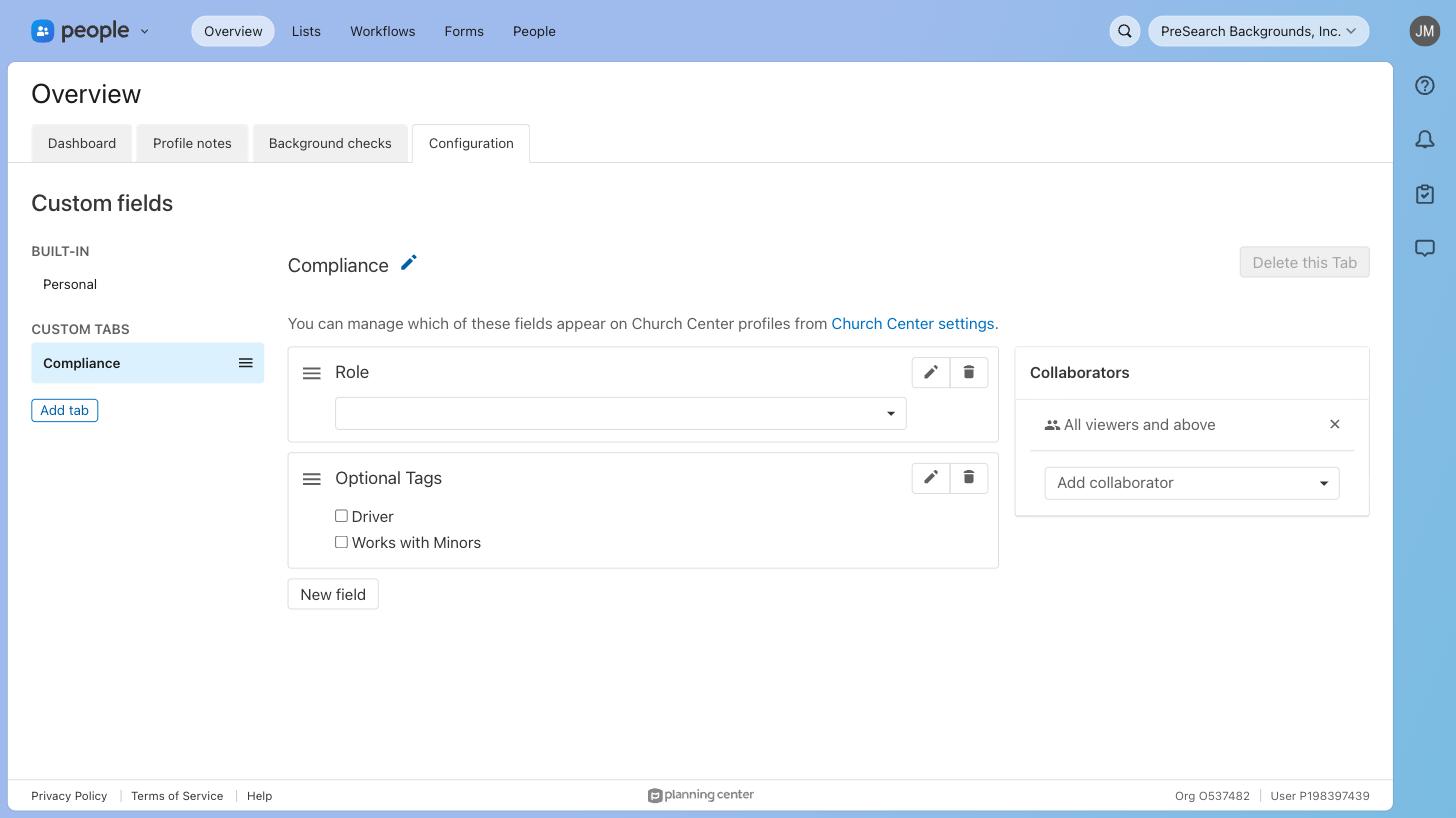
Two fields on a custom tab tell PSBI which screening package a person needs. Everything else is derived from them.
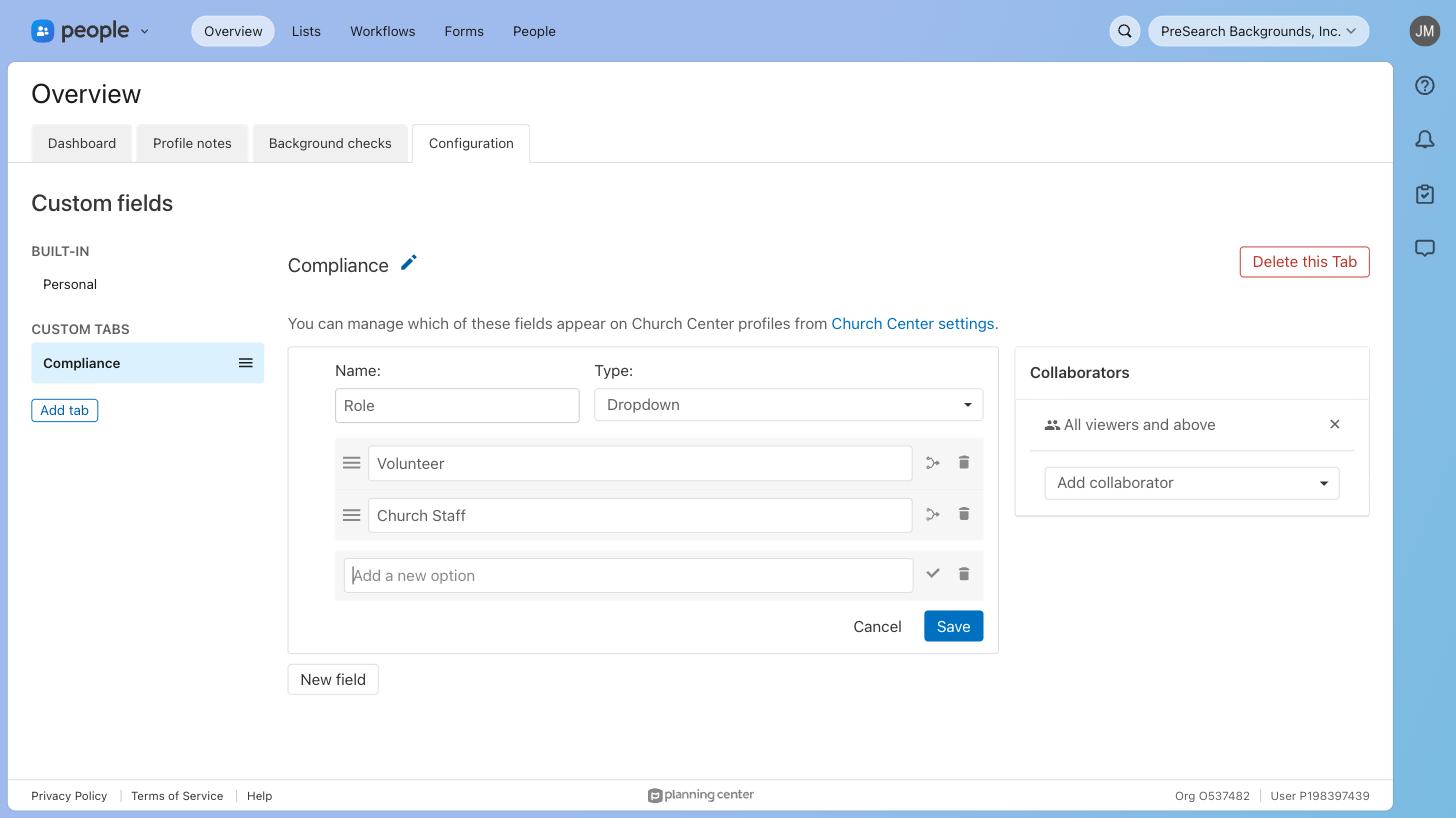
- 1In Planning Center People, open Overview → Configuration → Custom fields. Select Add tab and name it Compliance.
- 2Add a field named Role with type Dropdown, then add one option per group you screen differently — for example Volunteer and Church Staff.
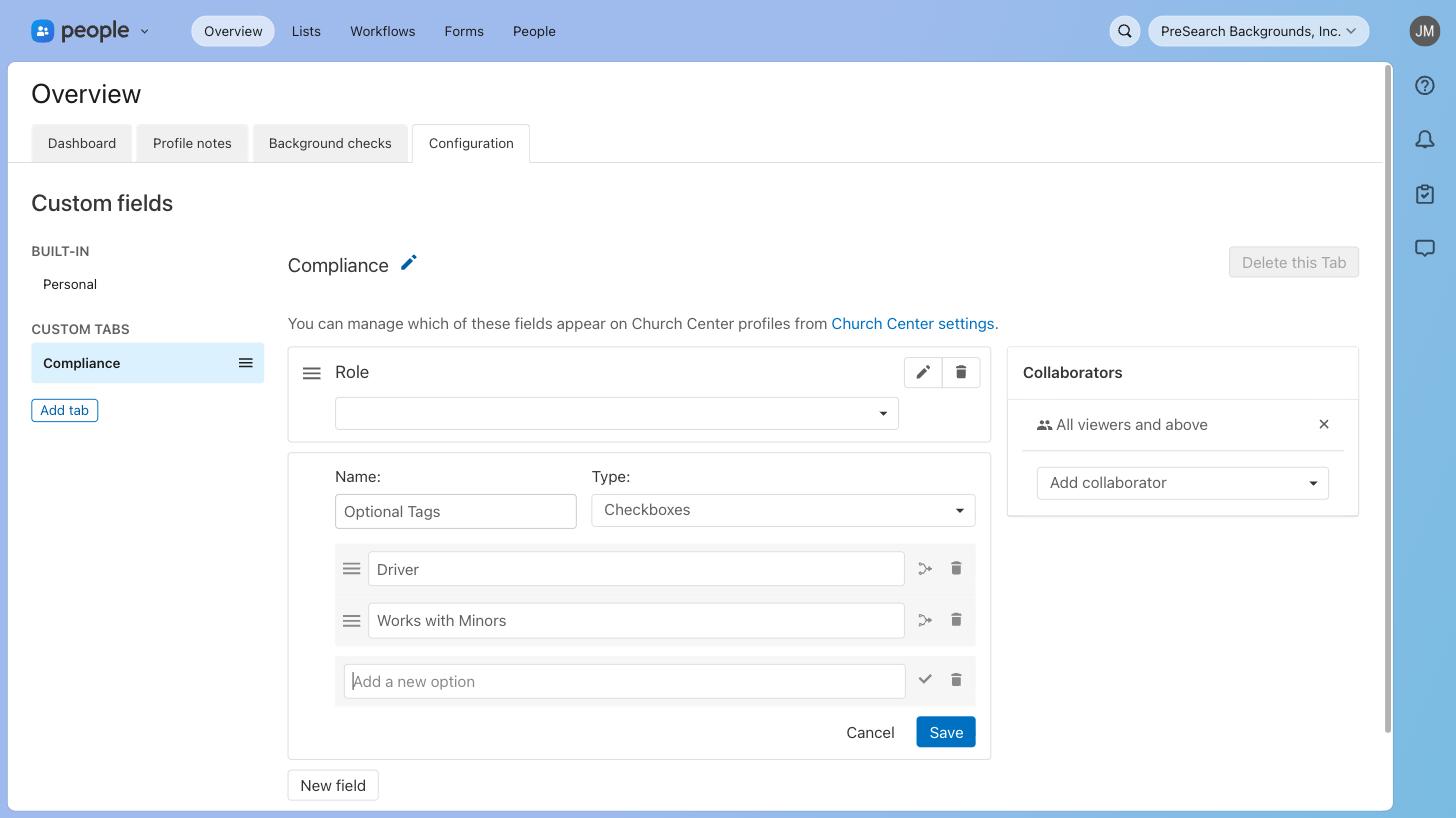
- 3Add a second field named Optional Tags with type Checkboxes, and add an option for each add-on requirement — for example Driver and Works with Minors.
Field names are yours to choose. PSBI stores the underlying field IDs, so renaming a field later will not break the connection — but adding or renaming an option does need to be shared with us, because options are matched by their value.
Create the Background Check workflow
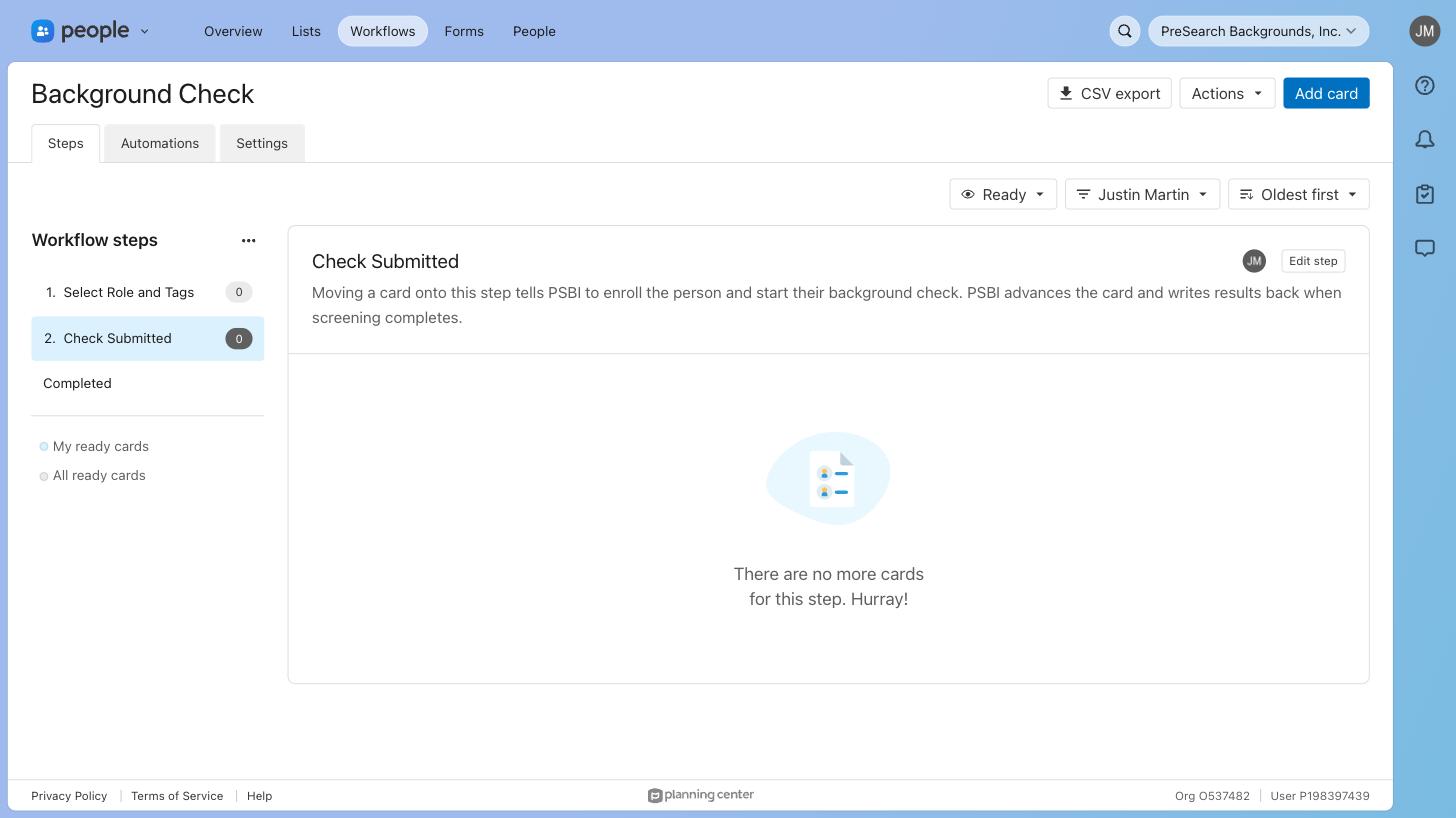
The workflow is how your team starts a check. Moving a card onto the second step is the signal PSBI listens for.
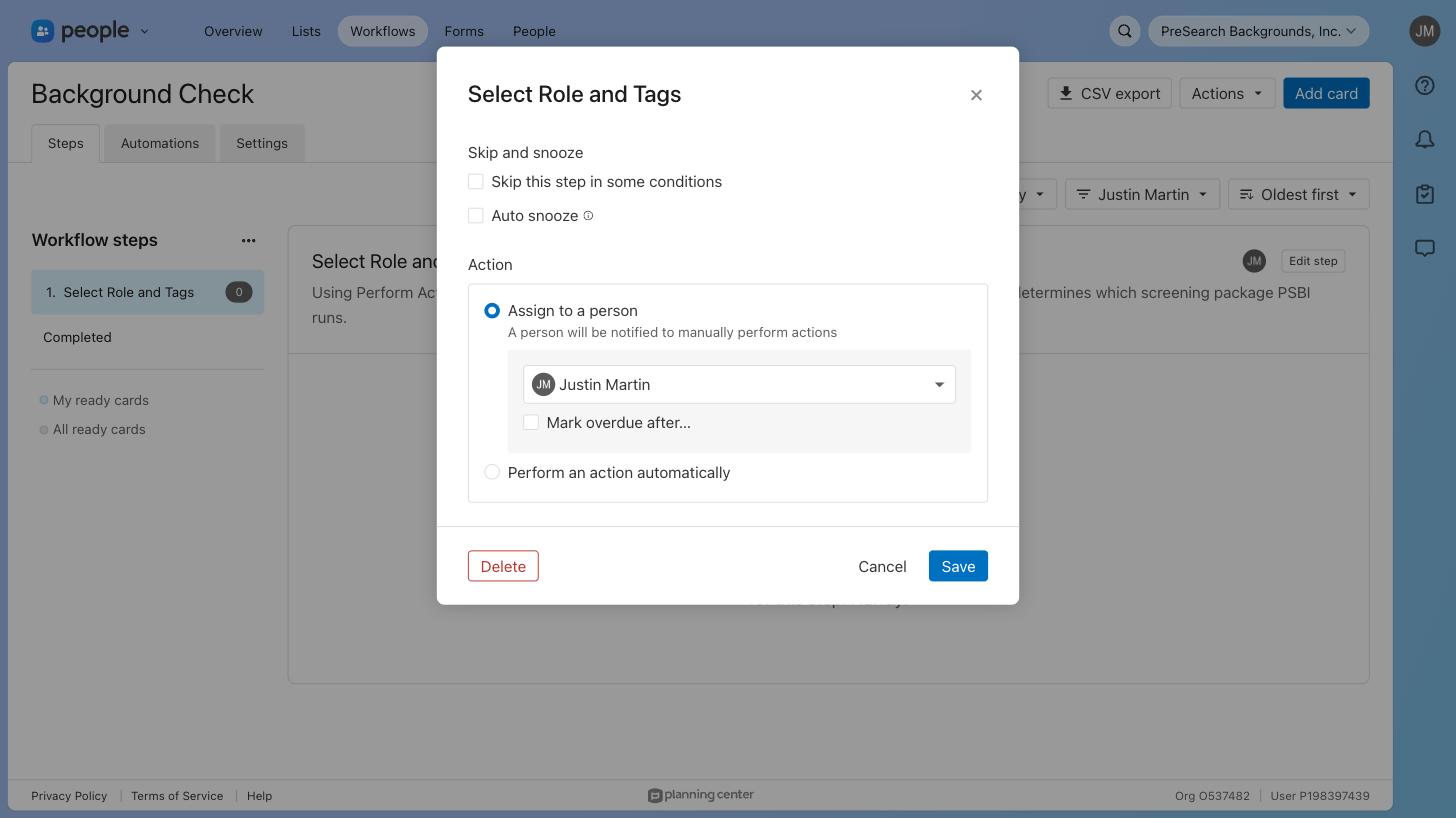
- 1Open Workflows and select New workflow. Name it Background Check.
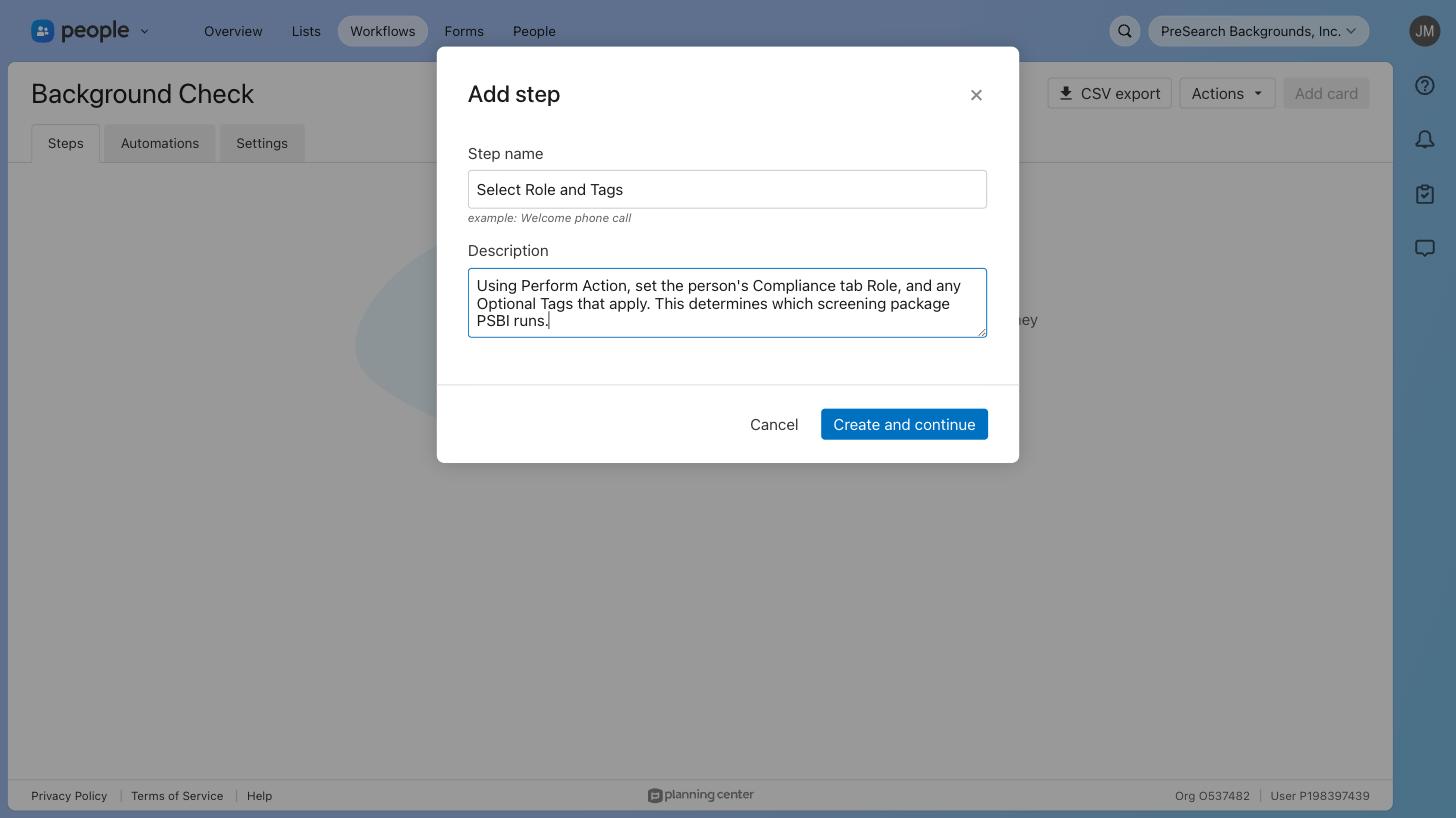
- 2Add a first step named Select Role and Tags. This is where your team sets the person’s Role and any Optional Tags.
- 3Add a second step named Check Submitted. Completing step one moves the card here, and that movement is what tells PSBI to enroll the person.
Use one deliberate step as the trigger. Because enrollment is driven by a card arriving on a named step, ordinary edits elsewhere in Planning Center cannot start a background check by accident.
Authorize PSBI
You do not create an application or manage API keys. PSBI sends you one link to approve.
- 1Your implementation lead sends you an authorization link. Open it while signed in to the Planning Center account that administers your People workflows.
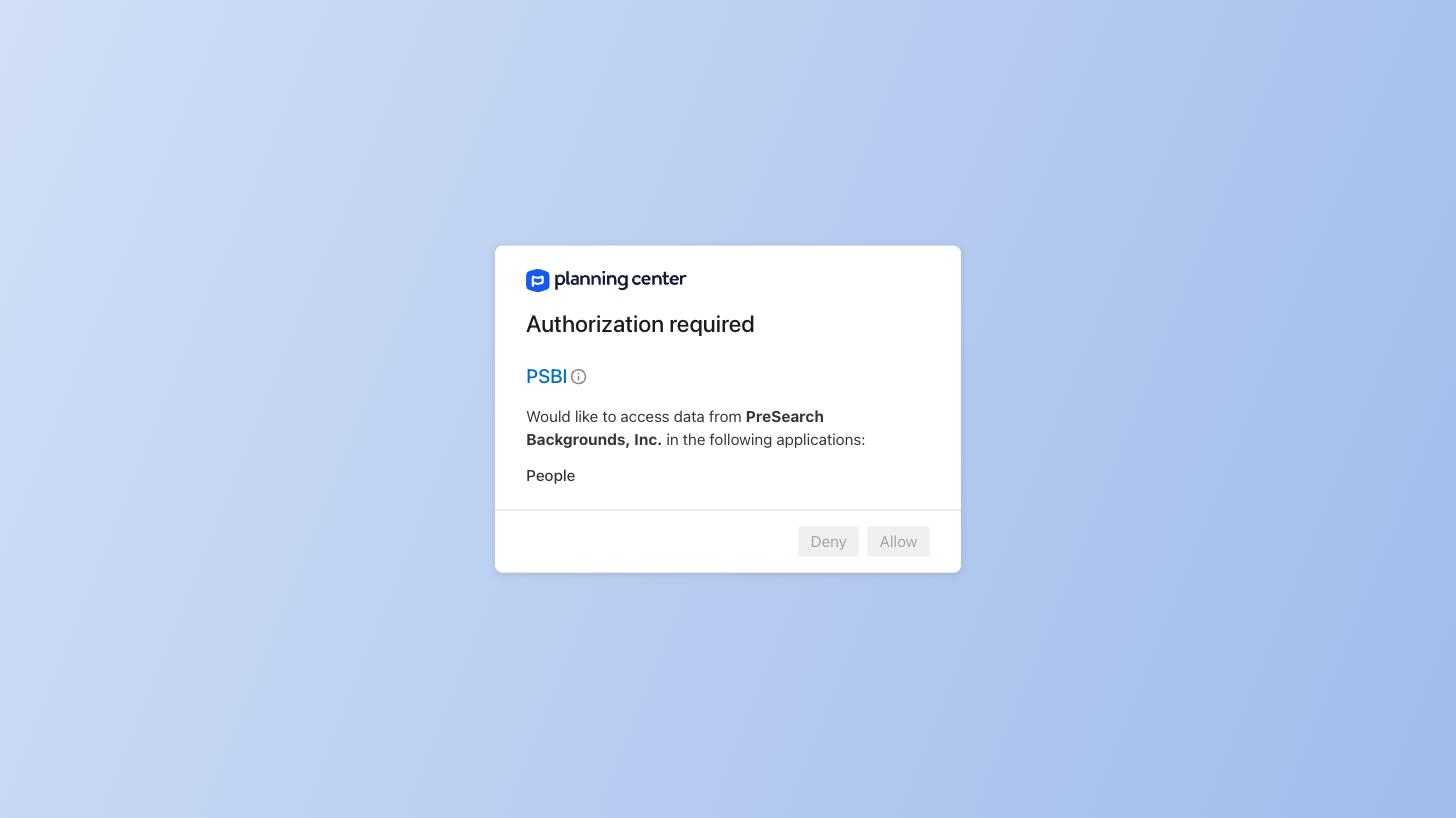
- 2Review the request. PSBI asks for access to People only, and the screen names your organization so you can confirm you are approving the right one.
- 3Select Allow. You are returned to a confirmation page, and access is now tied to your organization and revocable by you at any time.
The link carries a short-lived security code and should be opened promptly. If it expires, ask for a fresh one — the same link cannot be reused.
Create the event subscription
One subscription tells Planning Center to notify PSBI when a card reaches the trigger step.
- 1Open the Planning Center Developer area and go to Webhooks. Select Add.
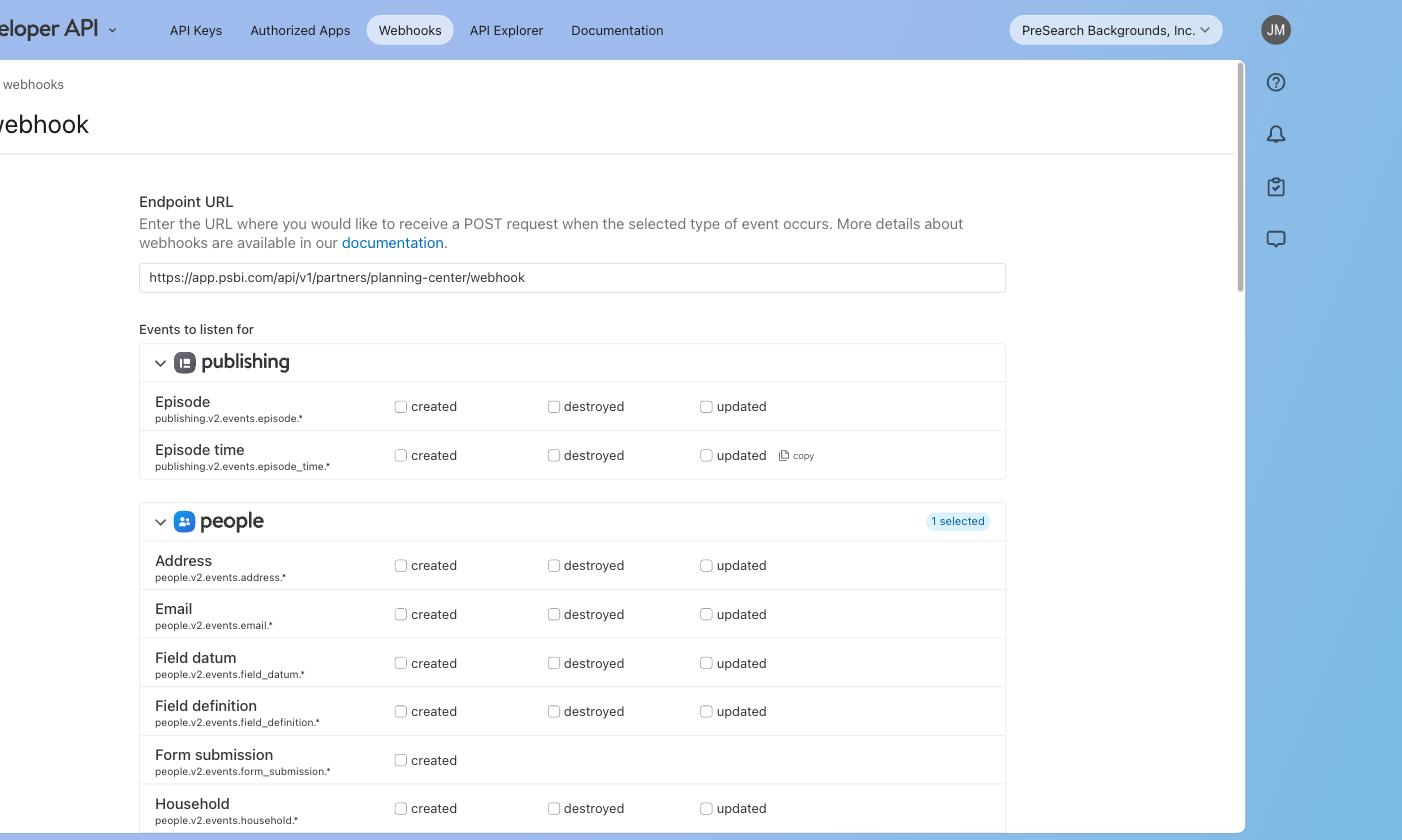
- 2For Endpoint URL, enter the address your implementation lead provides:
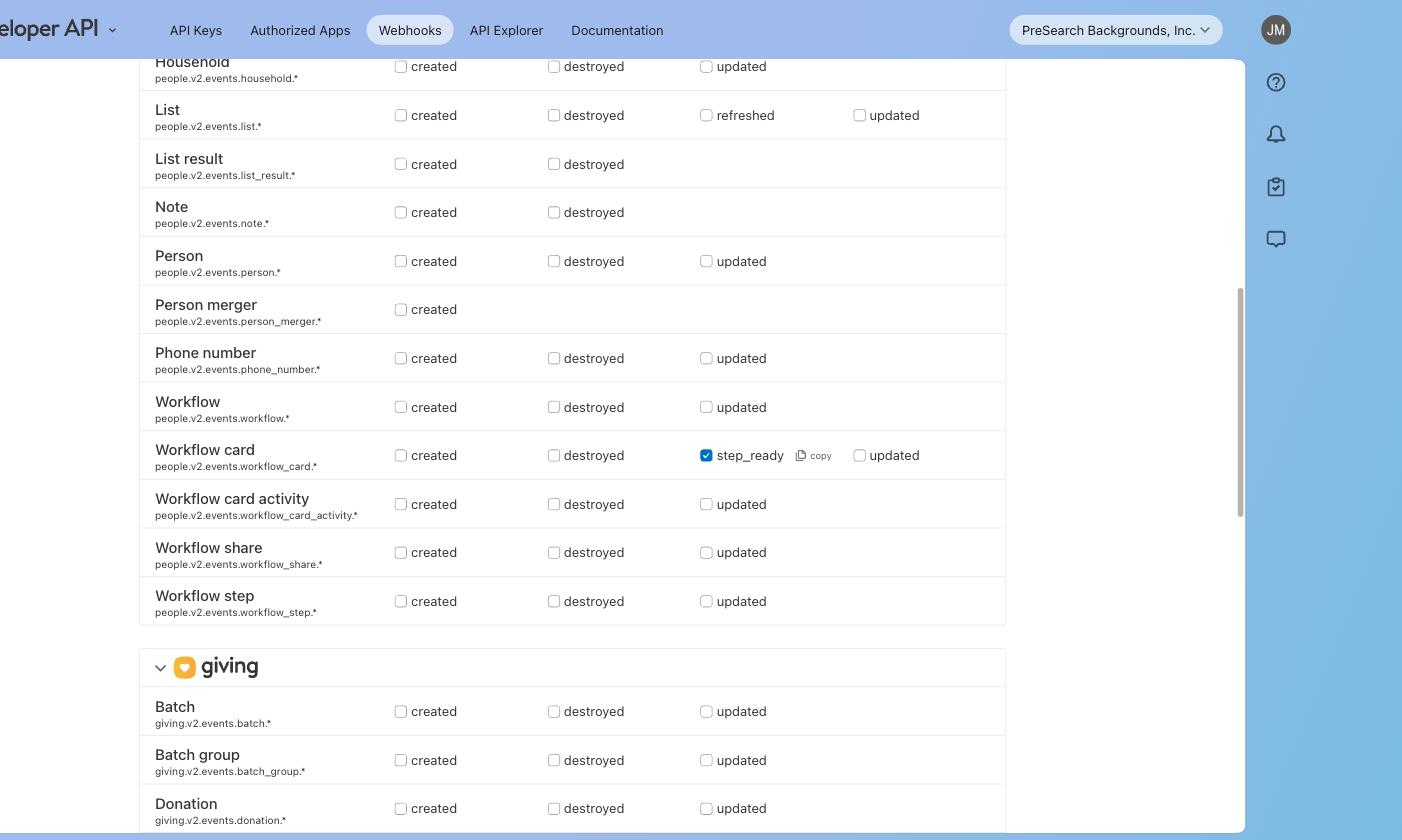
https://app.psbi.com/api/v1/partners/planning-center/webhook - 3Under people, find the Workflow card row and tick step_ready only. Leave every other event unticked, then save.
Subscribe to step_ready alone. Planning Center emits several events as a card changes, and subscribing to more of them produces duplicate work without changing the outcome.
Validate before you launch
PSBI runs a test with you before the connection is live. Use test people rather than starting with your full roster, and confirm each of these together:
- A test person reaches the trigger step and appears in PSBI within moments.
- The role you set selects the screening package you expected.
- An optional tag adds the extra requirement it should — a driver picks up a motor vehicle record.
- Status appears on the person’s Planning Center record and updates as screening progresses.
- Moving the same card twice does not enroll the person twice.
Treat the connection as live only once your implementation lead confirms the result with you.
What it looks like once it is running
Your team adds a person to the workflow, sets their role, and completes the step. Everything after that happens on its own — the person is invited, completes their own information and consent, and the result appears on their Planning Center record.
See the full walkthroughTroubleshooting
I cannot find Webhooks in Planning Center
Webhook subscriptions live in the Developer area and are created under a specific user account. Sign in as an administrator who can manage integrations for the organization. If the option is still unavailable, contact Planning Center support.
A person reached the step but nothing happened in PSBI
Check three things in order: the card is on the exact step agreed during setup, the person has a first name, last name, and their own email address, and the person is not marked as a child. Send us the person’s Planning Center record identifier and we will trace the event.
The wrong screening package was selected
Compare the person’s Role value against the mapping agreed during setup. Option values are matched exactly, so a renamed or newly added option needs to be shared with us before it is used.
We added a new role or ministry
Tell us before anyone is moved into the workflow under it. An unmapped role does not silently pick a sensible default, and we would rather add the mapping than sort out a person screened under the wrong package.
Someone was screened before and no new record appeared
That is expected. A person who already has a background check record has that record updated rather than a second one created, so their history stays on one row.
Need a hand?
Contact your PSBI implementation lead with your Planning Center organization name, the workflow or role involved, and what you expected to happen.
Contact PSBI